What do I do when my Grok Bot's computer runs out of disk space?
Your Bot works on a cloud computer with limited disk space, and big files like videos fill it fast.
All Grok Bot questions: https://www.soundminds.ai/faq.
Last updated Oct 24, 2026
Part of our Grok Bot Hot Topics series
Short answer
Your Bot works on a cloud computer with limited disk space, and big files like videos fill it fast. When it's almost full, your Bot tells you in chat, lists the biggest files and folders, and offers to delete them, and you decide. I checked Cursor's help page on the Grok Bot computer, and it says, "Nothing is deleted unless you say yes, and saying no leaves those files in place." The fix is to see what's taking the space, move what you want to keep somewhere safe, and check that it got there before anything is deleted. The help pages don't say how big the disk is, and I didn't find any documented way to get more space.
Before you start
If you don't have Grok Bot yet, the lowest plan that includes it is Premium, at $30 a month (xAI pricing).
Steps
- Check how full the disk is. I didn't find a disk-usage screen described in the help pages, so ask your Bot to check. Send the first prompt below. It asks for the biggest files and folders, which Bot or project each one belongs to, and whether it can be rebuilt. Remember that all your Bots share one computer, so one Bot's videos take space from the others.
Here's part of what my own Bot sent back when I asked. It listed each big folder, its size and whether it can be rebuilt. I blacked out the folder paths.
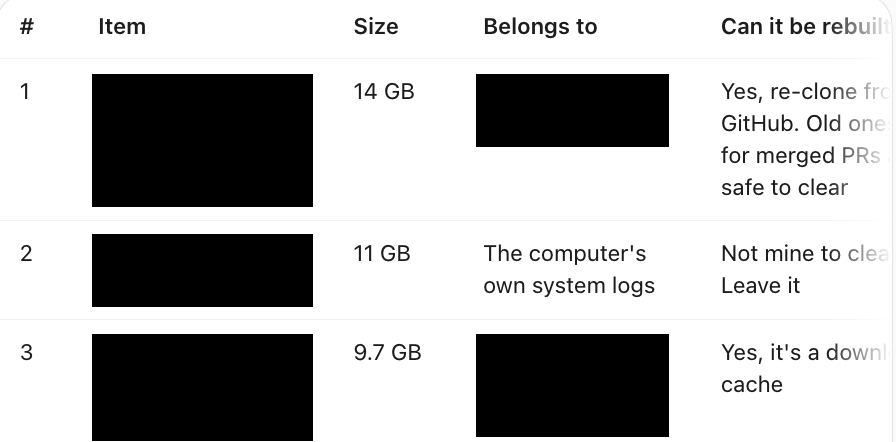

- Know what happens when the disk is almost full. When the computer is almost full, your Bot tells you once in chat, names the biggest files or folders with their sizes, and offers to delete them. Nothing goes unless you say yes, and your chats aren't touched. So read that list and say yes only to things you've already saved somewhere else or can rebuild.
- Move big files out, then check they arrived, then delete. Send the second prompt below. To save to your own computer, open the file card in the chat and save it. For Google Drive, connect it first if you haven't. In Grok Bot, select Connect apps in the sidebar, search for Google Drive, add it, finish the sign-in in your browser, and confirm it appears under Installed. The help pages only describe the Bot finding and reading Drive files, so the prompt asks it to upload only if it can, and to hand you a file card otherwise. Either way, compare the file name and size on the other end before you approve a delete.
- Know the limit, and work around it. The docs don't publish a disk size, and I didn't find any documented upgrade for disk space. So keep the Bot's computer for work in progress. Keep finished videos and raw footage in Drive or on your own computer, and delete rebuildable folders like node_modules or a Python virtual environment when you're done. The help pages say those folders aren't saved through a computer update, Recover or Reset anyway, so you can reinstall them when you need them.
Prompt 1: see what's using the space
Check how full your computer's disk is and tell me the used and free space. Then list the 15 biggest files and folders with their sizes, which Bot or project each one belongs to, and whether it can be rebuilt (for example node_modules or a Python virtual environment). Don't delete, move or upload anything yet. Just show me the list.Prompt 2: move files out safely
Example: "Move the three biggest .mp4 files from last week's video project."
For each file I name from that list: if my Google Drive is connected and you can upload to it, upload the file to a folder called "Bot archive". If you can't, give it to me as a file card so I can save it to my own computer. Then show me the file name and size on both ends so I can confirm they match. Don't delete anything from your computer until I say yes for that specific file.Reported by users, not in the docs
- Several people report a 16 GB disk (RiederBernhard, jeeffieee). That number isn't in the help pages.
- One user says the app shows "disk usage: normal" rather than a number.
- Eric Zakariasson posted that when the computer is running out of space, "you will meet Disk Saver!", which "will help you free up space by proposing cleanups".
- One user says the low-disk warning stayed on screen in the Android app after cleanup.
Sources
- Cursor help: Grok Bot computer
- Cursor help: Grok Bot FAQs
- Cursor help: Connect apps
- Grok Bot docs: Files and results
- Grok Bot docs: Approvals, security, and privacy
- xAI pricing
- User reports on X: mattshumer_, RiederBernhard, jeeffieee, murwin, XFreeze, matt_brewer, ericzakariasson
Sources
Cursor help: Grok Bot computer: https://cursor.com/help/grok-bot/computer-recovery
Nothing is deleted unless you say yes, and saying no leaves those files in place.
Cursor help: Grok Bot FAQs: https://cursor.com/help/grok-bot/faqs
Cursor help: Connect apps: https://cursor.com/help/grok-bot/connect-apps
Grok Bot docs: Files and results: https://docs.x.ai/grok-bot/files-and-results
Grok Bot docs: Approvals, security, and privacy: https://docs.x.ai/grok-bot/approvals-security-and-privacy
xAI pricing: https://x.ai/pricing
mattshumer_ on X (user report): https://x.com/mattshumer_/status/2091941777603260899
RiederBernhard on X (user report): https://x.com/RiederBernhard/status/2106492782240211246
jeeffieee on X (user report): https://x.com/jeeffieee/status/2106667836689309816
murwin on X (user report): https://x.com/murwin/status/2099467717501714666
disk usage: normal
XFreeze on X (user report): https://x.com/XFreeze/status/2112794321502027812
matt_brewer on X (user report): https://x.com/matt_brewer/status/2106360794212343830
ericzakariasson on X: https://x.com/ericzakariasson/status/2108305253129216471
you will meet Disk Saver!
will help you free up space by proposing cleanups
See how I set up Grok Bot: https://www.soundminds.ai/setup.